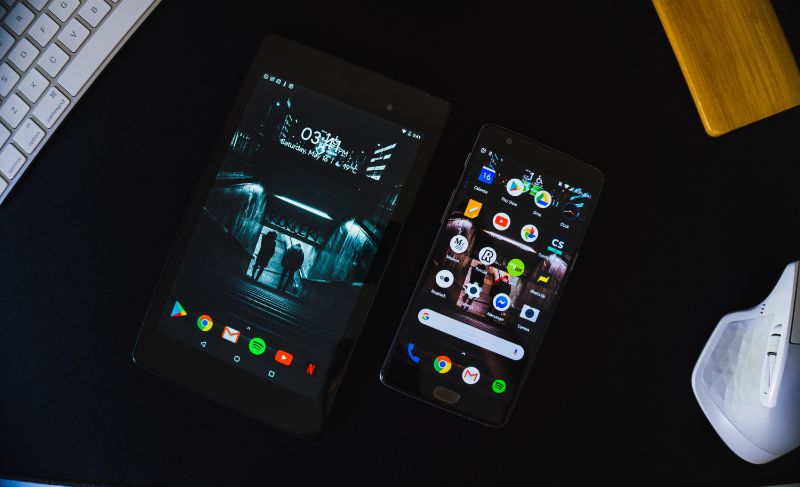
How to Sync an Android Phone to a Tablet (Contacts, Photos, Texts)
If you use an Android phone and an Android tablet, you can make them share most of what matters: contacts, photos, calendar, browser tabs, passwords, notes and even text messages. There’s no single “sync” button, though. Each type of data syncs through a different service, and most of it runs through your Google account.
Content of the page
This guide shows what to set up, in the order that gives you the most benefit with the least effort.
Step 1: Use the Same Google Account on Both Devices
Everything else depends on this. Your phone and tablet must be signed in to the same Google account.
- On the tablet, open Settings.
- Go to Passwords & accounts (on some devices: Accounts or Accounts and backup).
- If your Google account isn’t listed, tap Add account > Google and sign in with the same account you use on your phone.
Step 2: Turn On Account Sync
- In the same menu, tap your Google account.
- Tap Account sync.
- Turn on everything you want shared: Contacts, Calendar, Gmail, Keep notes, Drive, and so on.
Do the same check on your phone. Within a few minutes, contacts and calendar events appear on both devices, and changes on one show up on the other.
Step 3: Sync Photos with Google Photos
Photos taken on your phone don’t appear on the tablet automatically unless they’re backed up.
- On the phone, open Google Photos, tap your profile picture, and turn on Backup.
- On the tablet, open Google Photos with the same account.
Your phone’s photos and videos now appear on the tablet, and new ones show up once they finish uploading. Keep an eye on your Google storage: free accounts share 15 GB across Gmail, Drive and Photos.
Step 4: Sync Chrome Tabs, Bookmarks and Passwords
- Open Chrome on both devices.
- Tap the three-dot menu > Settings, then tap your name and make sure Sync is on.
Now your bookmarks, history and saved passwords follow you. To open a page you were reading on your phone, tap the three-dot menu > Recent tabs on the tablet.
Step 5: Get Your Text Messages on the Tablet
SMS messages live on your phone, but you can read and reply from the tablet with Google Messages:
- On the tablet, open Chrome and go to messages.google.com/web.
- On the phone, open Google Messages, tap your profile picture > Device pairing, and scan the QR code shown on the tablet.
Messages now appear on the tablet as long as the phone is on and connected.
For WhatsApp, the tablet can work as a linked device: see how to use WhatsApp on a tablet and a phone at the same time and our guide to installing WhatsApp on a tablet.
Step 6: Install Your Phone’s Apps on the Tablet
The Play Store keeps a list of apps you’ve installed on every device.
- Open the Play Store on the tablet.
- Tap your profile picture > Manage apps & device > Manage.
- Switch the filter from “Installed” to Not installed to see apps you have on your phone but not on the tablet, and install the ones you want.
Some phone-only apps (banking apps, for example) may not be available for tablets.
Step 7: Share Files Instantly with Quick Share
For one-off transfers, such as a video or a PDF, use Quick Share (formerly Nearby Share on non-Samsung devices). Open the file on the phone, tap Share > Quick Share, and pick the tablet. Both devices need Bluetooth and location turned on and should be close to each other.
Samsung Users: Extra Sync Options
If both devices are Samsung Galaxy, you get a few extras through your Samsung account:
- Call & text on other devices: answer calls and texts on the tablet.
- Continue apps on other devices: pick up in supported apps where you left off.
- Samsung Cloud / Samsung Notes sync between devices.
Look for these under Settings > Connected devices on both devices, signed in to the same Samsung account.
What Doesn’t Sync
- App data for most games and apps syncs only if the app supports cloud saving.
- Local files in the Downloads folder don’t sync unless you move them to Google Drive.
- Phone calls only work on the tablet through brand-specific features like Samsung’s.
Troubleshooting
Contacts aren’t appearing on the tablet
Make sure your contacts are saved to your Google account, not to the phone or SIM. In the Contacts app on the phone, check the account each contact is saved to. Then on the tablet go to Settings > Passwords & accounts > Google > Account sync and tap Sync now.
Photos aren’t showing up
Backup in Google Photos may be paused because of low battery, mobile data limits or full storage. Open Google Photos on the phone and check the backup status at the top.
Sync stopped working entirely
Check the date and time on both devices (wrong times break sync), make sure both are online, and try removing and re-adding the Google account on the tablet. If the tablet is very slow in general, start with resetting your Android tablet only after backing up.
Frequently Asked Questions
Can I sync my phone to my tablet without Google?
Yes, partially. Samsung devices can sync through a Samsung account, and some apps use their own cloud accounts. But the Google account covers the most data with the least setup.
Does syncing use a lot of data?
Contacts, calendar and Chrome use very little. Photo backup can use a lot: set Google Photos to back up over Wi-Fi only.
Can I sync an Android phone to an Amazon Fire tablet?
Only partly. Fire tablets don’t include Google services or the Play Store by default, so the steps above won’t work as written. You can add your Gmail account to the Fire tablet’s built-in Email app and use Google Photos, Drive and Messages for web through the Silk browser.
Final Thoughts
Sign in with the same Google account, turn on Account sync, enable Google Photos backup, and turn on Chrome sync. Those four steps cover most of what people want. Add Google Messages for texts and Quick Share for files, and your phone and tablet will feel like one system.