How to Remove Ads from Amazon Fire Tablet: 5 Methods (Free & Paid)
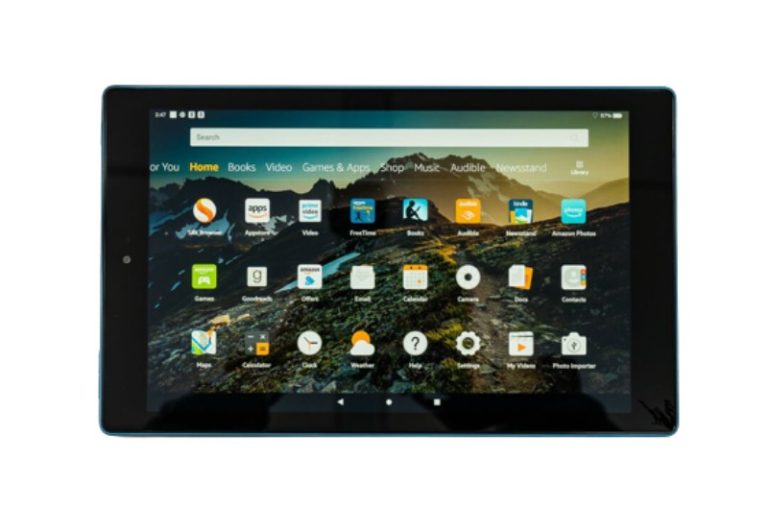
Those lock screen ads on your Amazon Fire tablet were cute for about a week. Now they’re just annoying — animated promotions, game trailers, and “special offers” that stand between you and actually using your device. The good news? You can get rid of them. The even better news? You might not have to pay a cent.
Content of the page
Quick answer: The fastest free method is to contact Amazon customer service via chat and politely ask them to remove the ads. Most agents will waive the $15 fee and issue an immediate refund. If that doesn’t work, you can pay the $15 one-time fee through your Amazon account, or use free technical workarounds like ADB or Fire Toolbox.
Why Does Your Fire Tablet Have Ads?
Amazon sells Fire tablets at aggressively low prices — a Fire 7 starts around $60, a Fire HD 10 around $140. They can afford this because the “With Ads” version (which Amazon calls “With Special Offers”) subsidizes the cost through lock screen advertisements.
When you buy the cheaper version, you’re essentially agreeing to see ads on your lock screen every time you wake the tablet. These aren’t pop-ups inside apps — they’re full-screen promotions that appear before you can even unlock the device.
The “Without Ads” version costs $15–$20 more at purchase. But if you already bought the cheaper one, you can remove the ads later using any of the methods below.
Method 1: Ask Amazon Customer Service (Free)
Difficulty: Easy | Cost: Free | Time: 5 minutes
This is the best-kept secret among Fire tablet owners. Amazon customer service agents have the ability to remove ads from your account for free — you just have to ask nicely.
How to do it:
- Go to amazon.com/hz/contact-us or open the Amazon app and navigate to Customer Service.
- Select your Fire tablet from the list of devices.
- Choose “Device issue” or “Something else” as the reason.
- Start a live chat (chat tends to work better than phone for this).
- Tell the agent something like: “Hi, I’d like to have the Special Offers (lock screen ads) removed from my Fire tablet. Is there any way to do that?”
- In most cases, the agent will either remove them directly or ask you to pay the $15 fee first, then issue an immediate refund.
Tips for success:
- Be polite. A friendly tone goes a long way.
- If the first agent says no, try again later with a different agent. Policies vary.
- You don’t need a specific reason, but if asked, you can mention the ads are repetitive, irrelevant, or that children use the device and you’d prefer they not see certain promotions.
- This method has been confirmed working as recently as early 2026 by multiple users across forums and tech blogs.
Important: This isn’t an official Amazon policy — it’s a courtesy that most agents extend. Don’t expect it as a guarantee, but it works more often than not.
Method 2: Pay the One-Time Fee ($15)
Difficulty: Easy | Cost: $15 + tax | Time: 2 minutes
This is the official, guaranteed method. Amazon charges a one-time fee (typically $15 for Fire tablets, $20 for Kindle e-readers) to permanently remove lock screen ads.
How to do it:
- On a computer or phone browser, go to amazon.com/mycd (Manage Your Content and Devices).
- Click the “Devices” tab.
- Find your Fire tablet in the list and click on it.
- Look for “Special Offers” in the device details section.
- Click “Remove offers” (or “Edit” depending on the interface version).
- Confirm the payment. Your default 1-Click payment method will be charged.
The ads disappear within minutes. Your lock screen will switch to a rotation of stock landscape and nature photographs instead.
What if it says “Something went wrong”?
Amazon’s device management page changes layout frequently. If you can’t find the option:
- Look under “Details” instead of “Actions” — Amazon has moved this button around several times.
- Try the direct link: amazon.com/hz/mycd/myx#/home/devices
- As a fallback, contact customer service (Method 1) and ask them to process the removal on their end.
Method 3: Use ADB to Disable Ads (Free, Technical)
Difficulty: Intermediate | Cost: Free | Time: 15–20 minutes
If you’re comfortable with a command line, ADB (Android Debug Bridge) lets you disable the system package responsible for lock screen ads without paying Amazon anything.
What you’ll need:
- A Windows, Mac, or Linux computer
- A USB cable to connect the tablet
- ADB installed on your computer (download from developer.android.com)
Steps:
1. Enable Developer Options on the tablet:
- Go to Settings → Device Options → About Fire Tablet.
- Tap “Serial Number” seven times rapidly. You’ll see a message saying “You are now a developer.”
2. Enable USB Debugging:
- Go back to Settings → Device Options → Developer Options.
- Toggle on “USB Debugging”.
3. Connect the tablet to your computer via USB.
- A prompt will appear on the tablet asking to allow USB debugging. Tap “Allow” (and check “Always allow” if you want).
4. Open a terminal/command prompt on your computer and run:
adb devicesYou should see your tablet listed. If it shows “unauthorized,” check the tablet screen for the permission prompt.
5. Disable the Special Offers package:
adb shell pm disable-user -k com.amazon.kindle.otter.oobe.forced.otaTo also remove the sponsored content tiles from the home screen:
adb shell pm uninstall -k --user 0 com.amazon.admanager6. Restart the tablet. The lock screen ads should be gone.
Important notes:
- This method can be reversed by Amazon after a software update. If ads reappear, just run the commands again.
- You’re not rooting the tablet or voiding the warranty — you’re just disabling a user-facing package.
- The exact package names can change with Fire OS updates. If the commands above don’t work on your specific model, search for your Fire OS version + “ADB remove ads” for updated package names.
Method 4: Use Fire Toolbox (Free, Easiest Technical Method)
Difficulty: Easy-Intermediate | Cost: Free | Time: 10 minutes
Fire Toolbox is a free, open-source Windows application that automates dozens of Fire tablet modifications — including removing lock screen ads — through a simple graphical interface. No command line needed.
What you’ll need:
- A Windows PC (Fire Toolbox is Windows-only)
- A USB cable
- Fire Toolbox downloaded from xdaforums.com (the official XDA thread)
Steps:
- Enable Developer Options and USB Debugging on the tablet (same as Method 3, steps 1–2).
- Download and install Fire Toolbox on your PC.
- Connect the tablet via USB and launch Fire Toolbox.
- The tool will detect your tablet automatically.
- From the main menu, select “Manage Special Offers” (or “Remove Lockscreen Ads” depending on the version).
- Click the button to disable ads. Done.
What else can Fire Toolbox do?
Since you already have it connected, you might want to explore other features: installing Google Play Store, removing bloatware, disabling over-the-air updates, changing the default launcher, and sideloading apps. We have a full guide on Fire Toolbox here.
Note: Fire Toolbox is maintained by a single developer and updated regularly. Always download from the official XDA thread to avoid counterfeit versions.
Method 5: Install a Custom Launcher (Free, Advanced)
Difficulty: Advanced | Cost: Free | Time: 20–30 minutes
This method doesn’t technically “remove” the ads — it replaces the entire Fire OS home screen and lock screen with a third-party launcher, which bypasses the ad system entirely.
How it works:
- Use ADB (Method 3) or Fire Toolbox (Method 4) to sideload a launcher like Nova Launcher or Lawnchair.
- Set it as the default launcher.
- Disable the Amazon home screen package via ADB:
adb shell pm disable-user -k com.amazon.firelauncher- The custom launcher replaces the Fire OS home screen, including the lock screen ads and the sponsored “Discover” row on the home page.
Pros and cons:
This gives you the cleanest experience possible — no ads anywhere, a stock Android-like interface, and full control over your home screen layout. However, it’s the most invasive change and can occasionally cause issues with Amazon services (like Alexa integration or the Amazon Appstore). Some users report needing to re-apply the launcher after Fire OS updates.
Which Method Should You Choose?
| Method | Cost | Difficulty | Permanent? | Recommended for |
|---|---|---|---|---|
| Ask Customer Service | Free | Easy | Yes | Everyone — try this first |
| Pay the $15 fee | $15 | Easy | Yes | If customer service says no |
| ADB commands | Free | Intermediate | Until next update | Tech-comfortable users |
| Fire Toolbox | Free | Easy-Intermediate | Until next update | Windows users who want a GUI |
| Custom launcher | Free | Advanced | Until next update | Power users who want full control |
My recommendation: Start with Method 1 (customer service). If that doesn’t work, pay the $15 (Method 2). Only use Methods 3–5 if you enjoy tinkering or want to avoid paying on principle.
FAQ
Do the ads affect battery life or performance?
Marginally. The Special Offers system downloads new ad content periodically and renders animations on the lock screen, which uses a small amount of battery and data. Removing them won’t transform your tablet’s performance, but every bit helps on lower-end models like the Fire 7.
Will removing ads void my warranty?
No — not if you use Methods 1 or 2. Those are official Amazon processes. Methods 3–5 (ADB, Fire Toolbox, custom launcher) don’t technically void the warranty either, since you’re not rooting or modifying the bootloader. However, if something goes wrong as a direct result of these modifications, Amazon support may not help you troubleshoot.
Can I put the ads back if I change my mind?
Yes. If you removed ads through Amazon (Methods 1–2), you can re-subscribe to Special Offers from the same Manage Your Content and Devices page at no cost. If you used ADB or Fire Toolbox, simply re-enable the packages you disabled or do a factory reset.
Do these methods work on Kindle e-readers too?
Methods 1 and 2 work identically on Kindle devices (Paperwhite, Oasis, Scribe, etc.), though the removal fee is $20 instead of $15. Methods 3–5 are specific to Fire tablets since they require Fire OS / Android.
I removed ads but still see “Recommended” content on the home screen. How do I remove that?
The home screen recommendations (the “Continue” and “Discover” rows) are separate from lock screen ads. To disable them: go to Settings → Apps & Notifications → Amazon Application Settings → Home Screens → toggle off “Recommendations” and “Continue and Discover Row”.
Related Guides
- How to Remove Amazon Kids from Fire Tablet — If your tablet is stuck in Kids Mode
- Fire Toolbox 2026: The Ultimate Guide to De-Bloating Your Amazon Tablet — Go further with ADB and Fire Toolbox
- How to Reset a Lenovo Tablet — Factory reset guides for other tablet brands