Fire Tablet Won’t Turn On? 7 Fixes That Actually Work (2026)
You press the power button on your Fire tablet and nothing happens. No Amazon logo, no vibration, just a black screen. Before you assume it’s dead, know that most Fire tablets in this state come back with the right sequence of steps: a proper charge, a long force restart, and, if needed, recovery mode.
Content of the page
Work through these fixes in order.
Fix 1: Remove the Case
It sounds too simple, but thick or misaligned cases (especially kid-proof foam cases) can press on the power button or stop you from pressing it fully. Take the tablet out of the case and try the power button again.
Fix 2: Charge for at Least 30 Minutes
A completely drained battery needs time before the tablet has enough power to boot. In this state, the screen often stays black even while charging, so it looks dead.
- Use the original Amazon adapter and cable if you have them.
- Plug the adapter into a wall outlet, not a computer or power strip.
- Leave it alone for at least 30 minutes, which is the minimum Amazon recommends.
- Then hold the power button for 2–3 seconds.
If nothing happens, try a different cable and adapter before moving on. Our guide to a Fire tablet that’s not charging covers cable, adapter and port problems in detail.
Fix 3: Force Restart (Hold Power for 40 Seconds)
This is the fix that works most often. If the tablet froze with the screen off, a normal press of the power button does nothing. A long press forces a hardware restart.
- Unplug the tablet from the charger. If you use a wireless charging dock, lift it off.
- Press and hold the power button for 40 seconds, or until the tablet restarts. If a shutdown prompt appears, ignore it and keep holding.
- Connect the charger again.
- Press the power button for 2–3 seconds to turn it on.
These are the steps from Amazon’s own help pages. Count the 40 seconds: most people let go far too early.
Fix 4: Check the Charging Port
If the tablet doesn’t react to the charger at all, look into the port with a flashlight. Lint packed into the bottom stops the plug from making contact. Turn the tablet off and remove it carefully with a wooden toothpick, then use compressed air. Don’t use metal objects.
Fix 5: Check Whether the Screen Is the Problem
Sometimes the tablet is on and the screen is the issue. Signs of this:
- You hear sounds (notifications, a startup chime, keyboard clicks) but see nothing.
- The tablet feels slightly warm, as if it’s running.
- Pressing the volume buttons plays sounds.
Shine a flashlight at the screen at an angle: if you can faintly see icons, the backlight has failed. If the screen is cracked or the tablet was dropped, the display or its connector may be damaged. In both cases, the tablet needs repair rather than a software fix.
Fix 6: Boot Into Recovery Mode
If the Amazon logo appears but the tablet never finishes starting, or it keeps restarting, recovery mode lets you restart cleanly or reset it.
- With the tablet off, press and hold power and volume down together (this works on most Fire models).
- Release after about five seconds, or when the Amazon logo appears.
- In the recovery menu, use the volume buttons to move and the power button to select.
- Choose Reboot system now first.
If the tablet still doesn’t start normally, return to recovery mode and choose Wipe data/factory reset. This erases all your content and removes the tablet from your Amazon account, so you’ll need to set it up again. Items you bought from Amazon can be downloaded again afterwards.
If the logo keeps looping, follow our dedicated guide to a Fire tablet stuck on the Amazon logo.
Fix 7: Let It Warm Up or Cool Down
Lithium-ion batteries don’t like extremes. If the tablet was left in a cold car or in direct sun, it may refuse to start until it returns to room temperature. Let it sit indoors for an hour, then charge and try again.
When to Give Up on Software Fixes
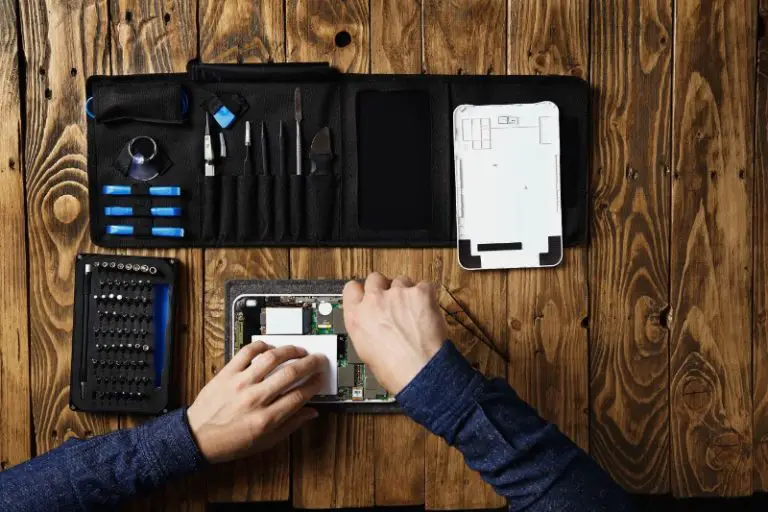
If you’ve charged it for several hours with a known-good adapter, done the 40-second restart several times, and can’t reach recovery mode, the problem is likely hardware: the battery, the charging port, the display or the board.
- Check your warranty under Your Devices in your Amazon account. Fire Kids editions come with a 2-year worry-free guarantee.
- Out of warranty, get a repair quote and compare it with the price of a new tablet. For budget models, a replacement is often cheaper. If you’re shopping, our guide to tablet sizes helps you pick the right screen size, and you can compare current Fire tablet models on Amazon.
Once your Fire tablet boots again, two quick clean-ups are worth doing: remove the lock-screen ads from your Fire tablet and, if it was a hand-me-down from a child, remove the Amazon Kids profile. If you have a different brand, our general guide covers how to fix any tablet that won’t turn on.
Frequently Asked Questions
Why won’t my Fire tablet turn on even though it’s charged?
It’s most likely frozen. Hold the power button for 40 seconds until it restarts. If that doesn’t work, try recovery mode.
How do I hard reset a Fire tablet that won’t turn on?
Use recovery mode: hold power and volume down, release when the Amazon logo appears, then choose Wipe data/factory reset. This erases your data.
My Fire tablet shows a charging icon but won’t turn on. What does that mean?
The battery is too low to boot. Leave it charging for at least 30 minutes, then try again. If the icon keeps appearing after hours of charging, the battery may be worn.
Can a Fire tablet die from being unused for a long time?
The battery can drain so far that it takes a long charge to revive it. In rare cases, a battery left fully drained for a very long time won’t recover and needs replacement.
Final Thoughts
Charge it for 30 minutes on a wall outlet, then hold the power button for a full 40 seconds. That brings most Fire tablets back. If it doesn’t, try recovery mode, and only then start thinking about repairs. Once it’s working again, our guide on how to speed up an Amazon Fire tablet helps keep it running smoothly.