How to Remove Amazon Kids from Fire Tablet (2026 Guide)
Stuck in Kids Mode on your Amazon Fire tablet? Whether your child has outgrown the restrictions, you’re repurposing the tablet for an adult, or you accidentally enabled Amazon Kids and now can’t access your apps, this guide walks you through every way to get out — step by step.
Content of the page
Quick answer: Swipe down from the top of the screen → tap the Profile icon → select your adult profile → enter your PIN. For a permanent removal, go to Settings → Profiles & Family Library → select the child profile → Remove Child Profile.
What Is Amazon Kids (and Why Is It So Hard to Exit)?
Amazon Kids — formerly called Amazon FreeTime — is a parental control feature built into every Fire tablet. When activated, it replaces the entire interface with a kid-friendly launcher that blocks access to adult apps, the Silk browser, social media, and the Amazon Appstore.
The problem? Once you’re inside Amazon Kids mode, there’s no obvious “exit” button on the screen. You need a Parental Controls PIN to get out, and many users either forget it or never realized they set one during the initial tablet setup.
Method 1: Switch from Kids Mode to Adult Profile (Temporary Exit)
Best for: Quickly accessing your own apps and content without permanently removing the child profile.
This is the fastest way to get out of Kids Mode on any Fire tablet model (Fire 7, Fire HD 8, Fire HD 10, Fire Max 11).
Steps:
- From the Kids Mode home screen, swipe down from the top of the screen to open the notification shade.
- Tap the profile icon (a small silhouette or your profile picture) in the Quick Settings area.
- Select your adult profile from the list.
- Enter your Parental Controls PIN when prompted.
- The tablet will switch to the standard Fire OS interface with full access to all your apps.
To switch back to Kids Mode later, repeat the same steps and select your child’s profile.
Can’t swipe down? On some Fire tablets running older software, the swipe-down gesture is disabled inside Kids Mode. In that case, look for a lock icon in the bottom corner of the screen and tap it, then enter your PIN.
Method 2: Remove the Child Profile Entirely
Best for: Permanently converting a Kids Edition tablet into a regular adult tablet.
If you no longer need a child profile at all, you can delete it completely from the tablet.
Steps (from the tablet):
- Exit Kids Mode first using Method 1 above.
- Go to Settings.
- Tap Profiles & Family Library.
- Select the child profile you want to remove.
- Tap Remove Child Profile.
- Confirm when prompted.
Steps (from Amazon’s website):
- Go to amazon.com/mycd on a computer or phone and sign in.
- Alternatively, go to the Amazon Parent Dashboard at parents.amazon.com.
- Select the child profile you want to delete.
- Click Remove Profile and confirm.
Once deleted, the child profile, its content, and all associated settings are gone. The tablet will only show adult profiles going forward.
Important: Removing a child profile from Amazon Family also deletes any data associated with that child’s account across all linked devices. If the profile is shared with other Fire tablets, it disappears from those too.
Method 3: Remove the Amazon Kids App Icon (Without Deleting the Profile)
Best for: Adults who bought a Fire tablet and simply don’t want the Amazon Kids app cluttering the home screen.
If you didn’t set up a child profile but the Amazon Kids app icon is sitting on your home screen anyway, you can remove it:
- Long-press the Amazon Kids app icon on your home screen.
- A menu will pop up with two options: “Remove from Home” or “Remove from Device”.
- Select Remove from Device to uninstall the app entirely.
If you don’t see the “Remove from Device” option, the app may be a system app that can’t be fully uninstalled. In that case, you can disable it: go to Settings → Apps & Notifications → Manage All Applications → Amazon Kids → Disable.
Method 4: Factory Reset (Nuclear Option)
Best for: Selling or giving away the tablet, or when you’re completely locked out and can’t remember the PIN.
A factory reset wipes everything — all profiles, apps, accounts, and data — and returns the tablet to its out-of-box state.
Steps:
- Go to Settings → Device Options → Reset to Factory Defaults.
- Enter your PIN if prompted.
- Tap Reset to confirm.
- Wait for the process to complete (5–15 minutes).
If you can’t access Settings (locked out):
- Turn off the tablet completely.
- Press and hold the Power button and Volume Down button simultaneously for about 20 seconds until the recovery screen appears.
- Use the volume buttons to navigate to “Wipe data/factory reset”.
- Press the Power button to confirm.
- Select “Yes” and wait for the reset to finish.
After the reset, you’ll go through the initial setup as if the tablet were brand new. No child profiles, no Kids Mode — just a clean slate.
Note about Factory Reset Protection: After the reset, you’ll need to sign in with the Amazon account that was previously registered on the device. Keep those credentials handy.
Forgot Your Parental Controls PIN? Here’s How to Reset It
This is the most common issue people run into. You set a PIN months ago, forgot it, and now you’re trapped in Kids Mode. There are three ways to recover:
Option A: Reset from the tablet
- On the PIN entry screen, enter the wrong PIN five times on purpose.
- A link will appear: “Reset Your Parental Controls Password”.
- Tap it and enter your Amazon account email and password (not the PIN).
- Set a new PIN.
Option B: Reset from Amazon’s website
- Go to amazon.com/mycd (Manage Your Content and Devices).
- Find your Fire tablet in the Devices tab.
- Click on it and look for Parental Controls settings.
- Follow the prompts to reset your PIN.
Option C: Deregister the device
If none of the above works:
- Go to amazon.com/mycd on a computer.
- Find your Fire tablet under Devices.
- Click Deregister.
- This signs the tablet out of your Amazon account remotely.
- You may then need to do a factory reset on the tablet to regain full access.
Amazon Kids vs. Amazon Kids+: Do You Need the Subscription?
A very common question: “Do I have to pay for Amazon Kids+ to use the Fire tablet?”
No. Amazon Kids (the free parental control feature) and Amazon Kids+ (the paid subscription) are two different things.
Amazon Kids (free) gives you profile management, parental controls, time limits, and content filtering. Every Fire tablet has this built in.
Amazon Kids+ (paid, around $4.99/month or $2.99/month for Prime members) adds a library of thousands of kid-friendly apps, games, books, and videos curated by age. If your child has outgrown it or you’re canceling the subscription, removing Kids+ does not remove the Amazon Kids parental controls — those are separate.
To cancel Amazon Kids+: go to parents.amazon.com → Settings → Subscription → Cancel.
Which Fire Tablet Models Does This Apply To?
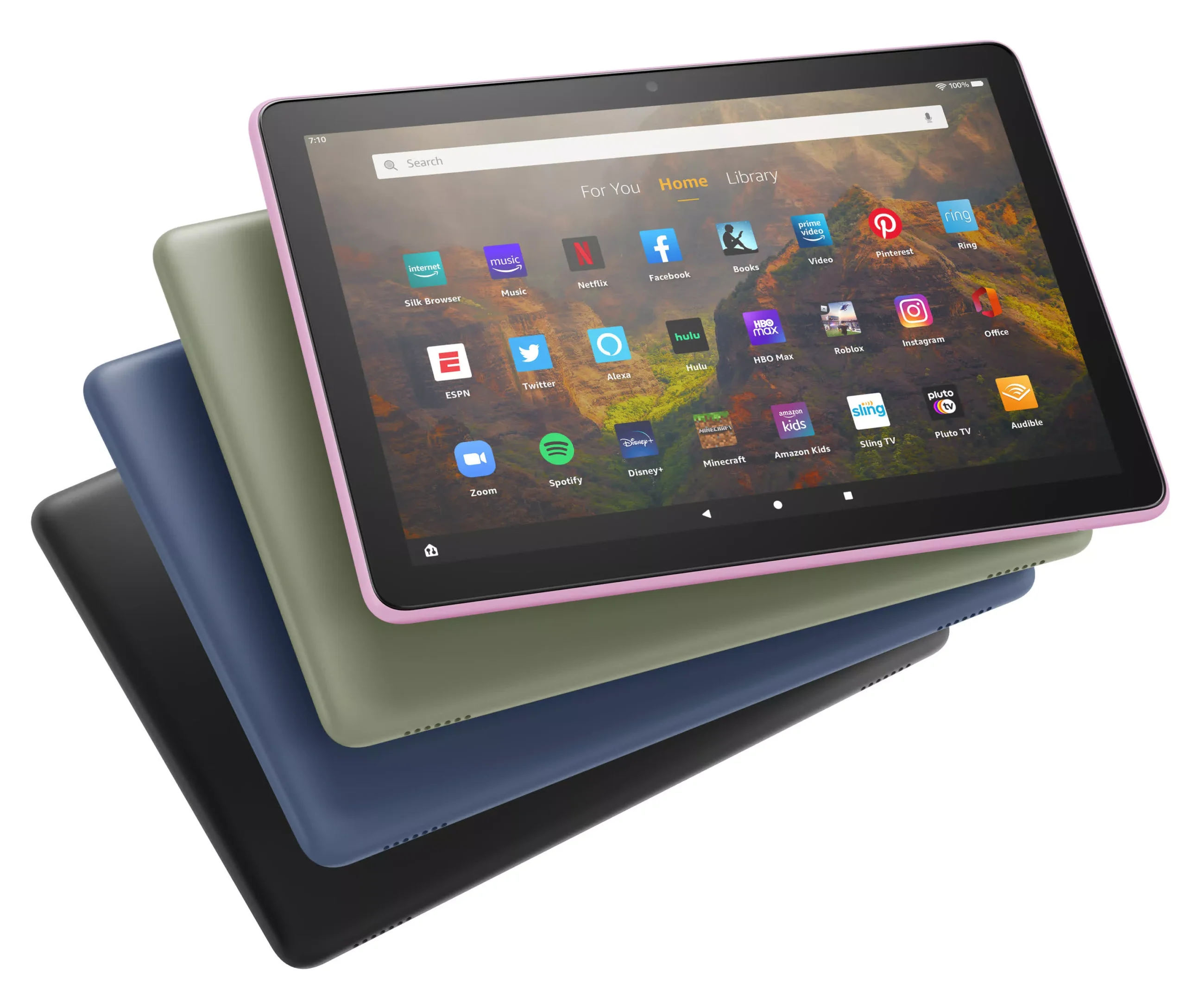
Every Amazon Fire tablet uses the same Fire OS and Amazon Kids system. The steps in this guide work on all current and recent models, including:
- Fire 7 (all generations)
- Fire HD 8 / Fire HD 8 Plus
- Fire HD 10 / Fire HD 10 Plus
- Fire Max 11
- Fire Kids Edition (all models — these are just regular Fire tablets with a kid-proof case and a Kids+ subscription included)
The Kids Edition tablets are identical hardware to the standard models. Removing Amazon Kids from a Kids Edition tablet turns it into a regular Fire tablet with no restrictions.
FAQ
Can I use a Fire Kids Edition tablet as a normal tablet?
Yes, absolutely. A Fire Kids Edition is the same hardware as the standard Fire tablet. Remove the child profile, exit Kids Mode, and it functions exactly like a regular Fire tablet. The kid-proof case is just a case — it doesn’t affect the software.
My apps disappeared after exiting Kids Mode. Where are they?
They’re likely still installed but hidden. Go to Settings → Apps & Notifications → Manage All Applications and check if they’re listed there. You can also re-download them from the Amazon Appstore. If you installed apps through a child profile, those apps only appear within that profile.
Can I have both adult and kids profiles on the same tablet?
Yes. Fire tablets support multiple profiles — up to one adult profile and four child profiles. You can switch between them at any time using the profile switcher in the notification shade. Each profile has its own apps, settings, and content.
Is it possible to use Google Play Store after removing Kids Mode?
Amazon Fire tablets don’t natively support Google Play Store, but you can sideload it after removing Kids Mode. This is a separate process that requires downloading a few APK files. It works on all Fire tablet models but requires disabling app installation restrictions first in Settings → Security & Privacy → Apps from Unknown Sources.
Last updated: March 2026