Fire Toolbox 2026: The Ultimate Guide to De-Bloating Your Amazon Tablet
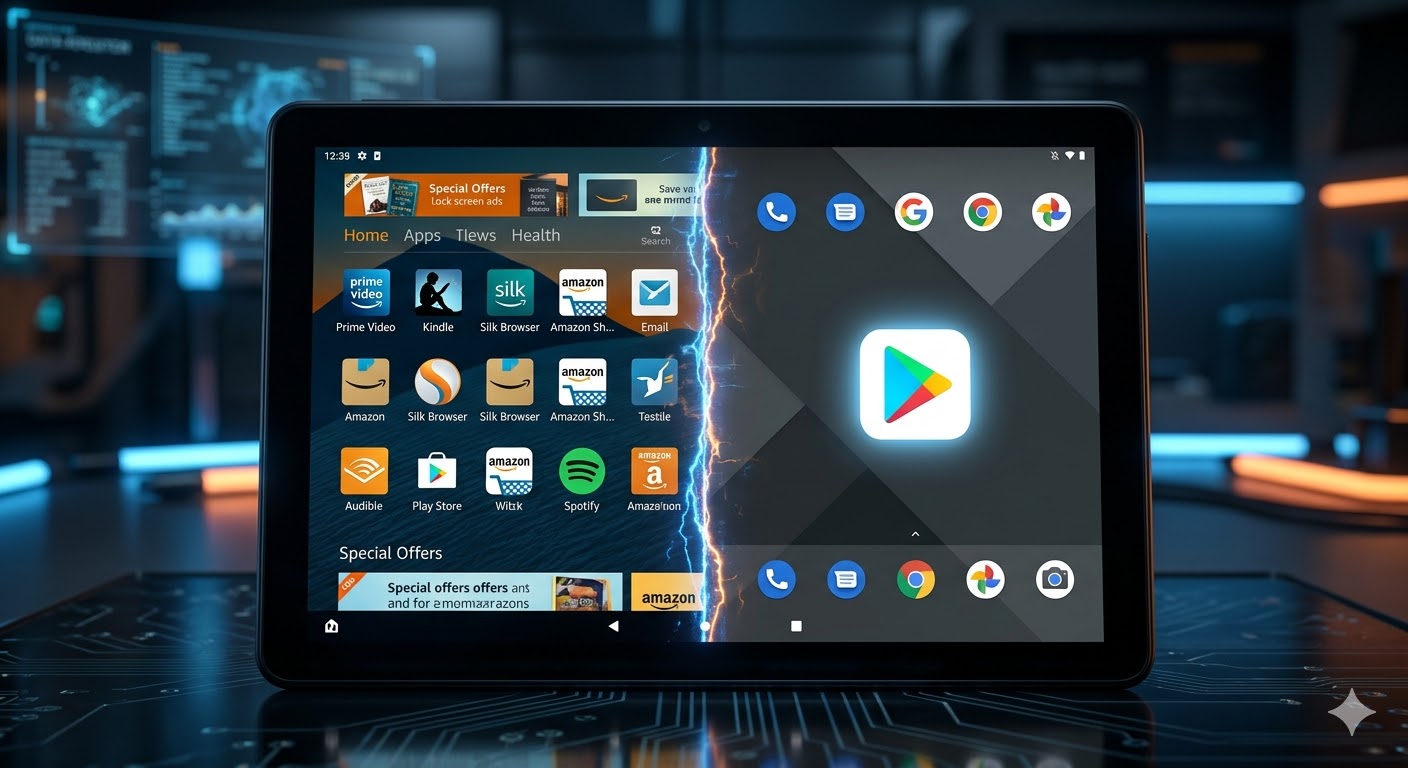
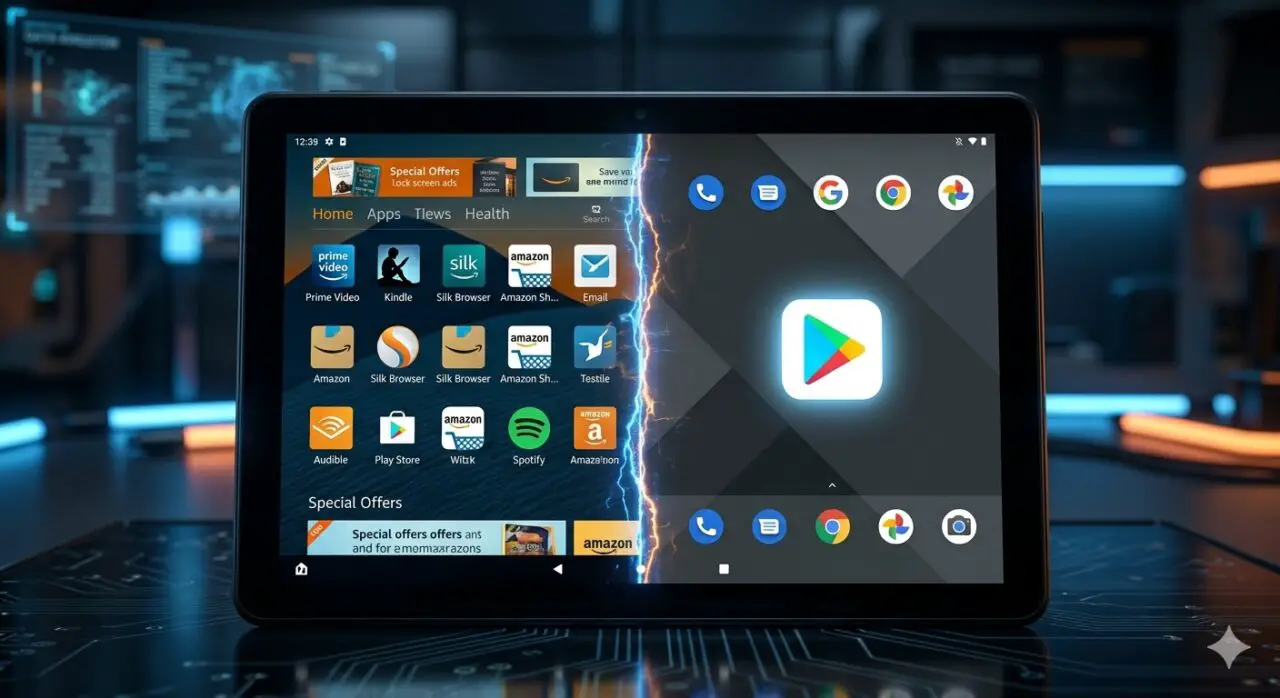
Amazon Fire Tablets are the best hardware for the price, but the software? It’s a battlefield of ads and restricted apps. If you feel like your tablet is more of a digital billboard than a personal device, it’s time to fight back.
Content of the page
In this Techcombact guide, we’ll show you how to use the Fire Toolbox (2026 Edition) to strip away the “Amazon clutter,” install the Google Play Store, and finally get a clean Android experience.
What is Fire Toolbox? (And why you need it)
Fire Toolbox is a Swiss Army knife for Windows that interacts with your Fire Tablet via ADB (Android Debug Bridge). It’s the “nuclear option” for users who want to:
- Remove Lock Screen Ads without paying Amazon $15.
- Install Google Play Store for YouTube, Gmail, and Chrome.
- Replace the Fire Launcher with Nova or Microsoft Launcher.
- Disable Amazon Bloatware that slows down your CPU.
Phase 1: Preparing Your Tablet for “Combat”
Before you connect to the Toolbox, you need to open the “backdoor” on your device.
- Enable Developer Options: Go to Settings > Device Options > About Fire Tablet. Tap the Serial Number 7 times until it says “You are now a developer.”
- Enable USB Debugging: Go back to Device Options > Developer Options. Toggle USB Debugging to ON.
- The Cable Matters: Use a high-quality data cable. Many “charging cables” won’t allow the Toolbox to see the device.
Phase 2: Running Fire Toolbox 2026
Download the latest version from the official XDA Developers thread (always avoid third-party mirror sites for security).
Step 1: Connection
Plug your tablet into your PC. A pop-up will appear on the tablet asking to “Allow USB Debugging.” Check the box “Always allow from this computer” and hit OK.
Step 2: The De-Bloat (The “Combat” Part)
Once the Toolbox opens, click on “Manage Amazon Apps.” * Pro Tip: Choose “Manual” or “Standard” de-bloat. Avoid “Automated” if you still want to keep specific apps like Prime Video.
- Action: Disable “Everything Amazon” to free up to 30% of your RAM.
Step 3: Installing Google Services
Click on “Google Play Services.” The Toolbox will automatically download and install the four necessary files in the correct order. This is the #1 reason people use this tool.
Common 2026 Issues & How to Fix Them
Since the latest Fire OS updates, Amazon has tried to block some features. Here’s how to win:
- Custom Launcher keeps resetting? Use the “Launcher Hijack” tool within the Toolbox or the “Sub-launcher” method.
- Toolbox doesn’t see the tablet? Re-install the ADB drivers from the Toolbox “Help” menu.
- OTA Updates: We recommend disabling “Automatic Updates” in the Toolbox so Amazon doesn’t “re-bloat” your device overnight.
The Verdict: Is it worth it?
Absolutely. A $100 Fire Tablet HD 10, when de-bloated, performs like a $300 Samsung tablet. You’ve bought the hardware; now it’s time to act and take control of the software.
Techcombact Rating: ⚔️⚔️⚔️⚔️⚔️ (5/5 Stars for Value)