Lenovo Tablet Touch Screen Not Working? 9 Fixes (2026)
Your Lenovo tablet turns on, but the screen ignores your fingers. Maybe it doesn’t respond at all, maybe only part of the screen works, or maybe it registers taps you never made (“ghost touches”). Before you book a repair, know that a large share of touch problems are caused by software, a screen protector, or even the charger.
Content of the page
Here are the fixes, from quickest to most involved.
Fix 1: Restart the Tablet
A frozen app or system process can stop touch input entirely.
- If the screen doesn’t respond, press and hold the power button for 10–15 seconds until the tablet restarts.
- If it still won’t respond, hold for longer (up to 30 seconds) to force it off, then turn it back on.
If your tablet won’t turn on again after this, see our guide to a Lenovo tablet that won’t turn on.
Fix 2: Clean the Screen and Your Hands
Touchscreens read the electrical charge of your finger. Grease, water, lotion and dust confuse that reading.
- Turn off the screen.
- Wipe it with a soft microfiber cloth, slightly damp with water. Don’t spray liquid directly on the screen.
- Dry your hands. Wet or very dry fingers both cause missed taps.
Fix 3: Remove the Screen Protector and Case
A thick, cheap, or badly fitted screen protector is one of the most common causes of partial touch failure, especially near the edges. Air bubbles and dust trapped underneath create dead spots.
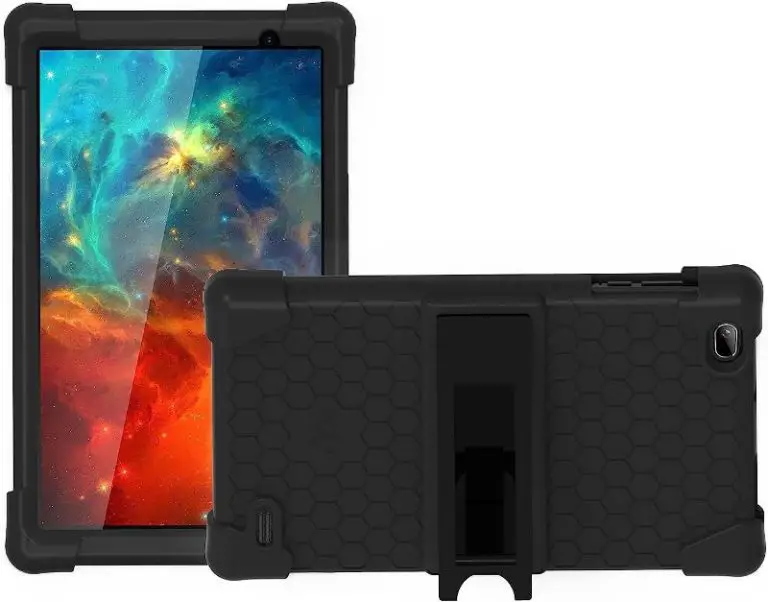
Peel the protector off and test the screen. Also remove any case that presses on the edges of the display: pressure on the frame can trigger false touches.
Fix 4: Unplug the Charger (Ghost Touch Test)
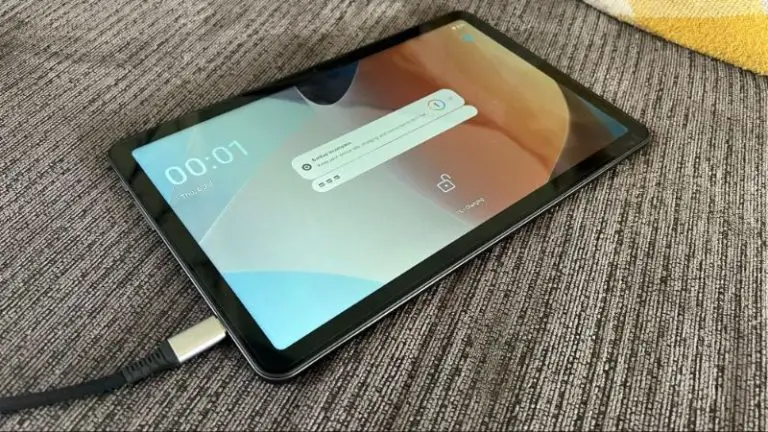
If the screen jumps around or registers random taps only while charging, the charger is the cause. Poor-quality chargers produce electrical noise that interferes with the touch sensor.
- Unplug and test: if the problem disappears, replace the adapter with a better-quality one.
- Use the original Lenovo adapter or a reputable brand. If you need one, compare USB-C wall chargers from trusted brands.
Fix 5: Find the Dead Zone With Developer Options
To see exactly where the screen isn’t working:
- Go to Settings > About tablet and tap Build number seven times to enable Developer options.
- Open Settings > System > Developer options (the location varies slightly by model).
- Turn on Pointer location.
Now drag your finger across the whole screen. Lines appear where touches register. If one strip or corner shows no line, that area of the digitizer has failed, which is a hardware problem. If the lines are perfect but apps still don’t react, it’s software. Turn Pointer location off when you’re done.
Fix 6: Boot Into Safe Mode
Safe mode starts the tablet with only the pre-installed apps. If touch works in safe mode, an app you installed is causing the problem (screen-dimming apps, overlays and some launchers are frequent culprits).
- Press and hold the power button until the power menu appears.
- Touch and hold Power off until the “Reboot to safe mode” prompt appears.
- Tap OK.
If touch works normally, uninstall recently installed apps one by one, restarting each time. Restart normally to leave safe mode.
Fix 7: Update the Software
Lenovo sometimes fixes touch bugs in system updates. Go to Settings > System > System updates (or Settings > About tablet > System update) and install anything available. Also update all apps in the Play Store.
If problems started right after an update, a later patch may fix it. Some users roll back instead: our guide on how to downgrade a Lenovo tablet explains the risks.
Fix 8: Free Up Memory and Storage
On budget models like the Tab M8 or M10, a nearly full storage or too many background apps makes the whole tablet lag, which feels like an unresponsive screen. Free up at least a few gigabytes of storage and close unused apps. Our guide on how to speed up a Lenovo tablet covers this step by step.
Fix 9: Factory Reset
If touch works in Pointer location but the system still misbehaves, a factory reset rules out software completely. Back up your data first.
- If you can use the screen: Settings > System > Reset options > Erase all data (factory reset).
- If the screen doesn’t respond enough to navigate, use recovery mode, which works with the physical buttons only. See how to reset a Lenovo tablet for the button combinations.
If the tablet gets stuck restarting after a reset, follow our Lenovo tablet boot loop guide.
When It’s the Hardware
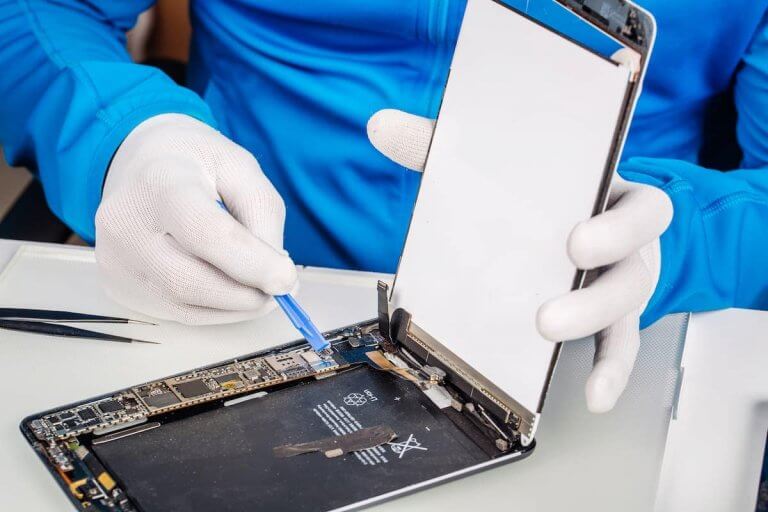
If Pointer location shows dead areas, or the problem continues after a factory reset, the touch layer (digitizer) or its cable is faulty. Common causes are drops, pressure on the screen, and liquid.
- Under warranty: contact Lenovo support with your serial number (found in Settings > About tablet or on the box).
- Out of warranty: a screen replacement on a budget tablet can cost a large part of the price of a new one. Get a quote first.
Frequently Asked Questions
Why does my Lenovo tablet touch screen work only sometimes?
Intermittent touch is usually caused by a screen protector, a noisy charger, or low memory. Test without the protector and unplugged, then restart.
How do I fix ghost touches on a Lenovo tablet?
Unplug the charger, remove the case and protector, and clean the screen. If ghost touches continue unplugged, try safe mode and a factory reset. If they persist, the digitizer is faulty.
Can I use my Lenovo tablet without the touch screen?
Partially. You can connect a USB or Bluetooth mouse (USB-C to USB adapter for wired mice) to navigate and back up your data before a reset or repair.
Does a factory reset fix touch screen problems?
Only if the cause is software. If Pointer location shows dead zones, a reset won’t help.
Final Thoughts
Start with the free checks: restart, clean, remove the screen protector, and unplug the charger. Then use Pointer location to tell software problems from hardware ones. That one test tells you whether to keep troubleshooting or go straight to repair.